Virtual Office for Remote Teams
Have a quick word like in the office, even when your team works from different places: a 2D online office in the browser, not a business address. Walk up to someone and you are connected, you switch the microphone on yourself. In the Staffbase intranet, a widget shows who is in the office. Ordering requires a registered seat in Germany and the tick box “I am ordering as a business (§ 14 BGB)”.
What the virtual office does for you
No clicking 'join meeting'. Whoever is nearby in the room is connected automatically.
Proximity audio and video
The camera is on by default once you leave the entrance area (can be turned off). The microphone stays off until you switch it on. Walk away from the zone and the conversation ends, no one has to hang up.
Three office sizes to choose from
Three office sizes: S up to 6, M up to 10, L up to 16 people. The size can be changed at any time; zone pinboard notes are deleted when you switch.
Operated on JASP servers
The app runs on JASP servers in Nuremberg. Audio and video run through a US provider's service. Every team is its own isolated tenant.
What it looks like
Screens from test rooms on our stage environment. Names and camera images are examples.
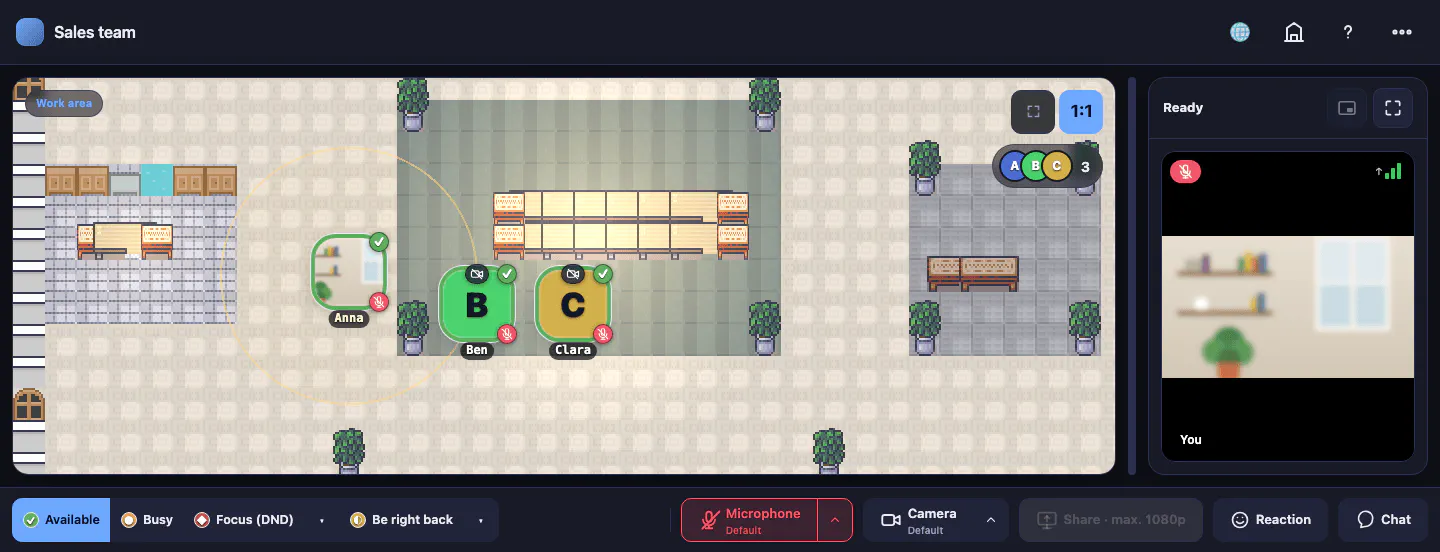
An office to walk into
Work areas, a meeting island, an open kitchen and a dimmed quiet corner all sit on one map. The avatar moves with the keyboard.
- Three office sizes: S up to 6, M up to 10, L up to 16 people
- Meeting island as a fixed gathering point
- Kitchen and quiet corner for informal conversations
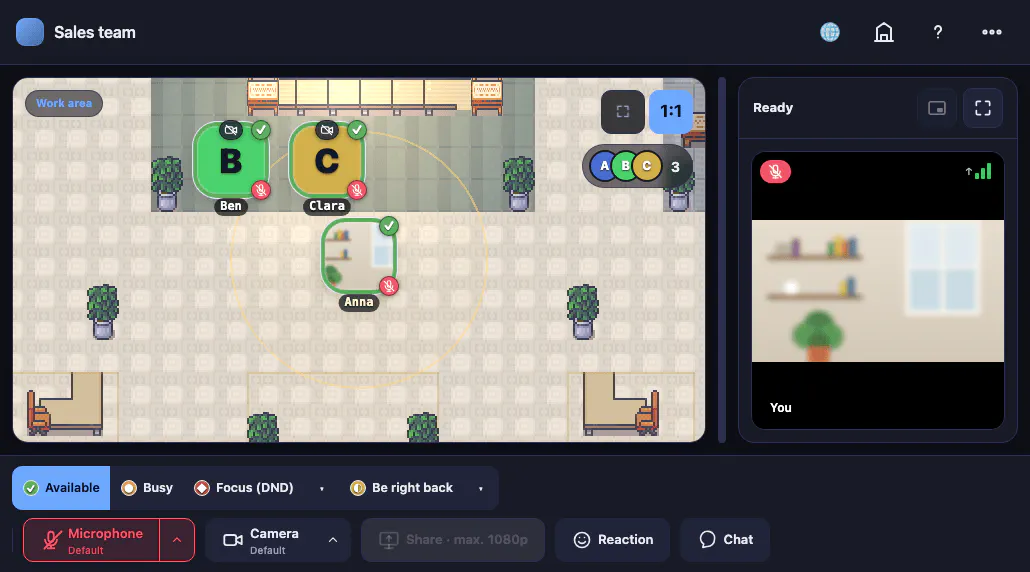
Microphone off until you're ready
The camera is on by default once you leave the entrance area (can be turned off). The microphone stays off until you switch it on.
- No accidental going live with sound right after joining
- Avatar colour is freely selectable
- Status: Available, Busy, Focus or Be right back
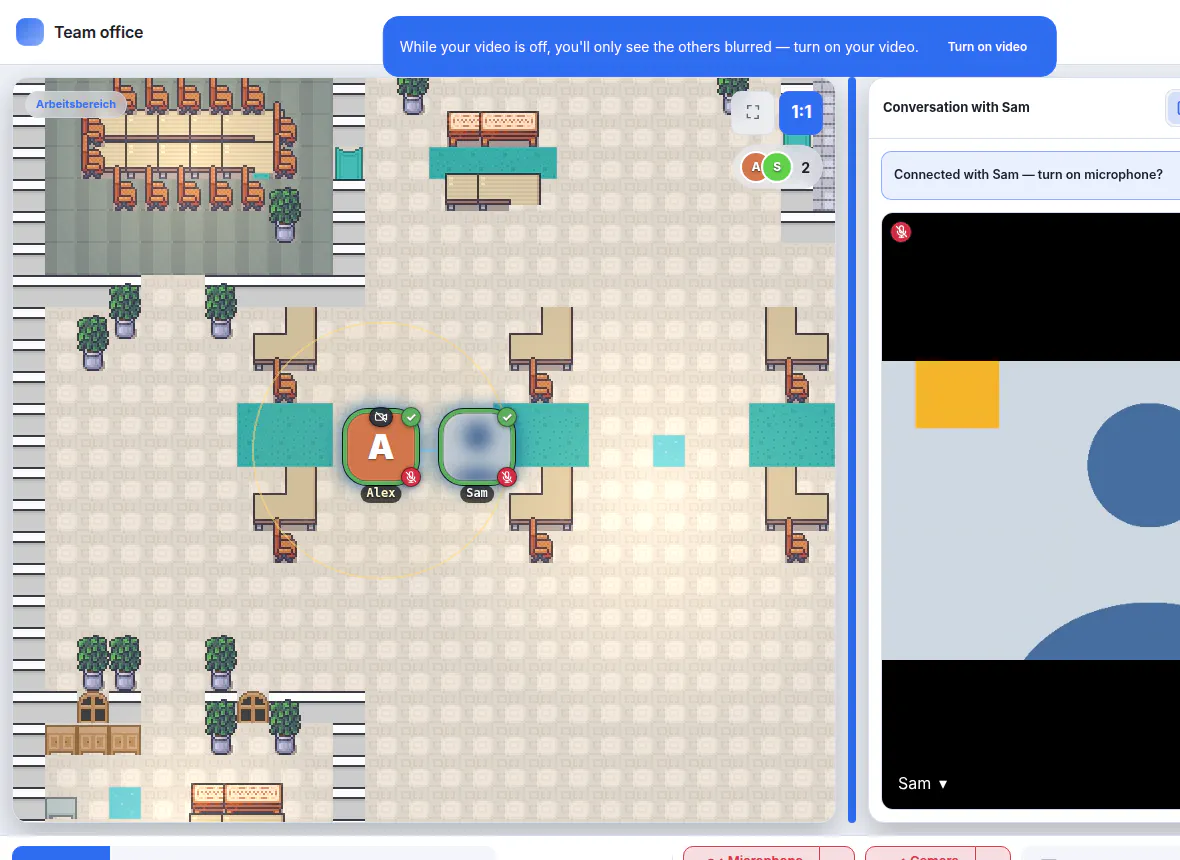
Show yours, see clearly
If you turn off your own camera, the small previews of the others on the map turn blurred. You still see that someone is there and moving, but no details. A hint at the top explains why. Camera on, and everything is sharp again at once.
- Applies only to the previews on the map
- Video in a conversation stays sharp
- The hint has a “Turn on video” button
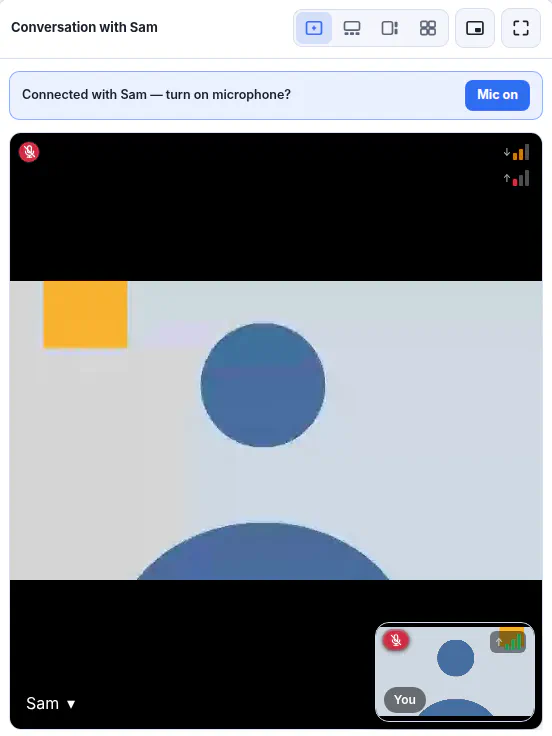
Your video arrives the right way round
Your own preview is mirrored, like a mirror. The others get your video unmirrored, so text behind you is readable for them. The yellow square in the screen shows it: in the colleague's video it sits at the top left, in your own preview at the top right.
- Mirrored only in your own preview
- No setting needed
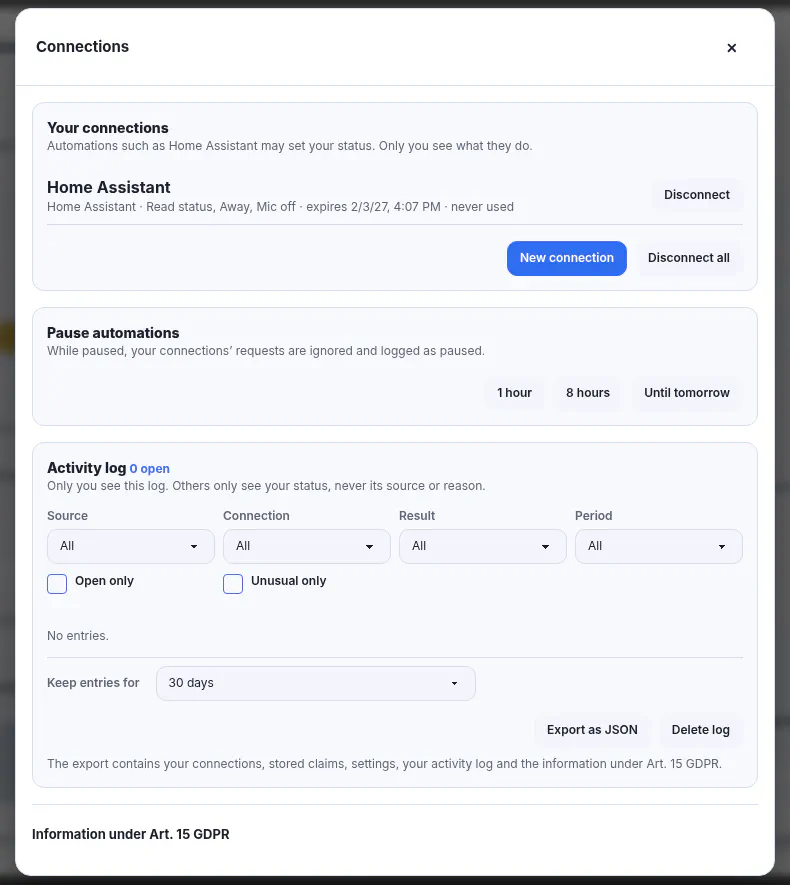
Status from your smart home
Through an API, your own script or Home Assistant can read your status, set you to away and mute your microphone, for example when you leave the house. It cannot turn the microphone on. You create each connection yourself, with a personal key.
- The room admin turns on “Connections allowed”, it is off by default
- At most 10 connections per person, valid for 30, 90 or 365 days
- Activity log only for you, pause for 1 hour, 8 hours or until tomorrow, export as JSON
Where the virtual office runs
The virtual office is a standalone web app that you open via a link.
- Standalone web app
Via a room link that every member opens directly in the browser. No installation needed.
- Operated by JASP
You create your own office, we release it and operate it on JASP servers.
- On your devices
In the browser, no install needed. We checked the office map in common browsers in phone and tablet view, not yet on real devices. The avatar moves with the keyboard; touch control is not verified.
- In Microsoft Teams
As an app in Teams, signed in with the Microsoft account. In the customer area, click “Download Teams app” for the room, then upload the app in the Teams admin center.
- Coming soon: Staffbase plugin
Virtual Office is coming soon as a Staffbase plugin with its own page in Staffbase, signed in with your Staffbase account.
What it means for you
Features
Move with the keyboard
The avatar moves through the room with the keyboard, like in any 2D game.
Avatar colour is freely selectable
Every member picks their avatar colour on joining or in settings. Without a choice, the system assigns one automatically.
Status: Available, Busy, Focus, Be right back
Your own status is visible to everyone in the room. After 5 minutes of inactivity it switches to Away if camera and microphone are off.
Office size changeable at any time
The admin switches the office size in the management area at any time. This deletes the zone pinboard notes, and everyone restarts at the entrance.
Microphone turns off by itself
When a conversation ends, because you walk away or the others leave, your microphone turns off. You always turn it on yourself.
Lock a zone and knock
In a meeting or office zone, you lock the zone for a conversation among yourselves. Whoever enters the locked zone can knock, and someone inside lets them in. When the last person leaves, the zone opens again.
Quiet corner
Whoever walks into the quiet corner is set to away, with camera and microphone off. On leaving, the previous status comes back.
Browser instead of installation
The virtual office runs as a web app in the browser. Members open the room link and are straight in.
Operated by JASP
JASP operates the virtual office and rolls out updates. You create your own office, we release it. Your admins share the room link from the admin area.
Virtual office software for remote teams
“Virtual office” often means a business address you rent. Here it is a room in the browser where your team meets: each member moves an avatar through a 2D office, and whoever is nearby is connected automatically. When someone leaves the zone, the connection ends by itself. It is made for small and mid-sized companies, IT teams and office teams that work remotely or hybrid.
You open a room link in the browser, there is nothing to install. The camera is on once you leave the entrance area (can be turned off). The microphone stays off until you switch it on. Each team is its own isolated tenant.
An alternative to Gather, Kumospace and WorkAdventure
You may know the principle from Gather, Kumospace or WorkAdventure: an avatar in a 2D office, conversations start through proximity. The JASP virtual office works on the same principle and is tailored to small teams. There are three office sizes: S up to 6, M up to 10, L up to 16 people.
You create your own office, we release it and run it on our own servers. Audio and video run through a US provider’s service.
A complement to Teams meetings and your intranet
The virtual office does not replace scheduled meetings. It is meant for the quick word in between that remote teams miss at the desk. For meetings with minutes, you stay with Microsoft Teams.
You book meeting rooms on site with Room Booking, and registrations for team events run through JASP Events. In the Staffbase intranet, a widget shows who is in the office and in which area.
At a glance
As of November 5, 2026, according to the vendor's website; statements about JASP checked in the app's code on the same day. A selection without prices: all criteria, vendors, prices and the vendors' sources are in the full comparison.
| Criterion | JASP Virtual Office | Gather | Kumospace | WorkAdventure |
|---|---|---|---|---|
| Guests via link without an account | YesRoom link with display name; guest links expire after 1 hour to 7 days | YesGuest hours limited | YesUp to 4 hours per week | YesPublic rooms for anyone with the link |
| Own office layout | YesMap editor | Yes | Yes | YesMap editor |
| Screen sharing | YesFrom the Starter plan, resolution per plan; on Free only during the trial hour | YesSimultaneous screen sharing | Yes | Yes |
| Chat | YesNo history, messages are not stored | Yes | Yes | Yes |
Plans and pricing
Per room, by the number of people in the office at the same time. Free replaces a trial.
Free
4 people at a time, 3 hours a day
€0 net per room and month
Starter
5 people at a time
€15 net per room and month
Team
10 people at a time
€34 net per room and month
High
16 people at a time
€99 net per room and month
All prices exclude VAT. Business customers only.
- Audio and video under fair use.
Frequently asked questions about the virtual office
Which devices does the virtual office run on?
How does proximity video work?
Who can order the virtual office?
Do we need to install anything?
How many people fit in a room?
Where does the virtual office run?
Why do I see the others blurred?
Is there an API, for example for Home Assistant?
Are camera and microphone on immediately when we enter the room?
What is a virtual office, and is it a business address?
Is there an alternative to Gather, Kumospace or WorkAdventure?
Does the virtual office replace Microsoft Teams?
How do we set up a virtual office for our team?
Which external services are involved?
How does deletion work?
How do users sign in?
Matching apps
More JASP apps for your intranet and Microsoft 365. Each one also runs on its own.
Widget Builder
Built-in widgets for Staffbase ready to activate without code, your own widgets in HTML or with the AI editor.
Room Booking
Book meeting rooms with photos, equipment and free slots, in Outlook, Staffbase or as a web app.
JASP Events
Registration with seat limit, waitlist and confirmation emails for internal events.
M365 Search Connector
Make Staffbase news and pages searchable in Microsoft Search and Copilot.
Automatic Page Translator
Translate SharePoint pages into 70+ languages with one click.
Calendar
Show appointments in Staffbase by month, week, day or list and export them as .ics files.
Tournament Prediction Game
Predict match results, track your points and see who leads the leaderboard.