SharePoint Online: Multilingual Websites
Microsoft has now introduced support for multilingual websites in SharePoint Online Modern UI. Previously, there was only an open-source solution from the...
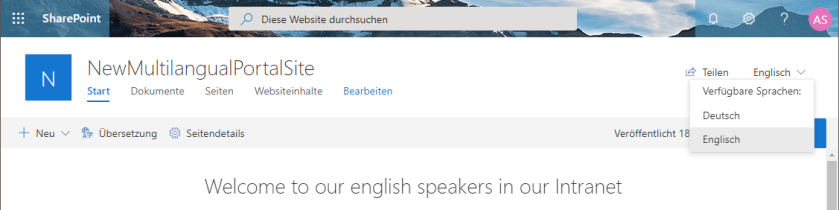
Microsoft has now introduced support for multilingual websites in SharePoint Online Modern UI. Previously, there was only an open-source solution from the PnP Community, as already described in an earlier article. This new feature is listed under ID 50217 in the Microsoft Roadmap and will be rolled out to Targeted Release Tenants by the end of March 2020.
Functionality of Multilingualism
Multilingualism in websites allows content such as news articles and content pages to be created and published in different languages. The content is displayed to the user either based on their set language (SPO user profile) or manually via a language switcher on the website.
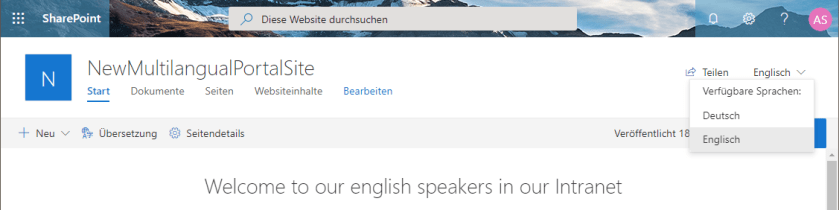 Language Switcher
Setting Up Multilingualism
Website administrators can configure multilingual options under the URL “/_layouts/15/muisetng.aspx”. This is where the supported languages are defined. After the default language of the website was set during its creation, additional languages can now be added.
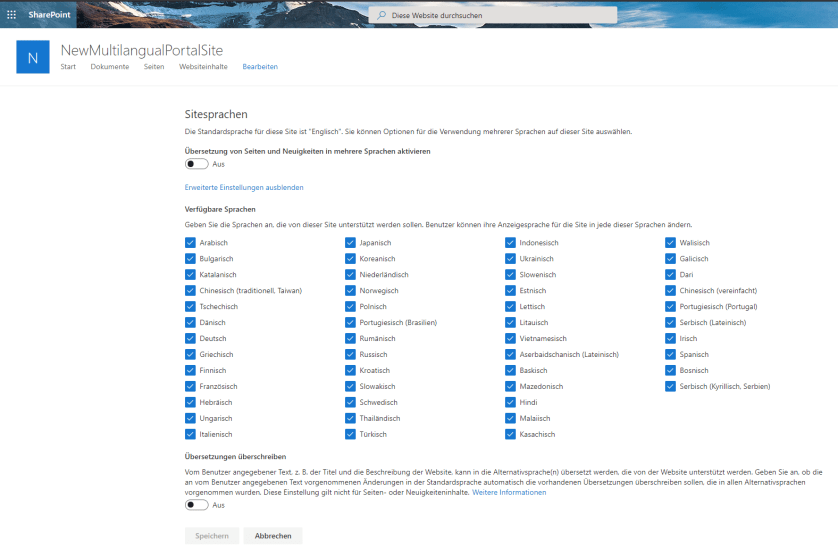 Multilingual Settings in a Website
For each selected language, an editor can be designated to provide translations. Multiple users per language are possible.
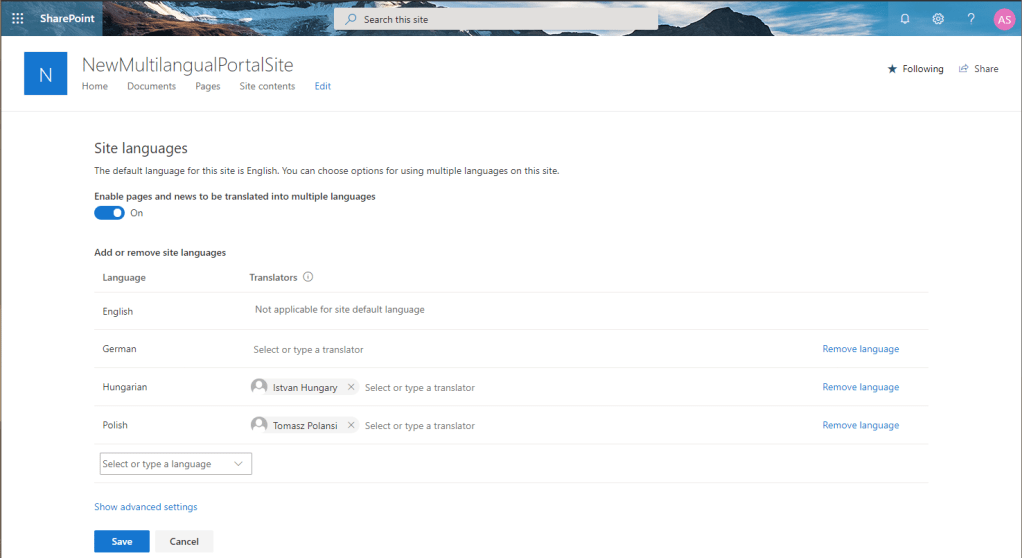
Workflow for Editors
After setup, editors will see an additional “Translation” button in the title bar on every page.
 New Button for Creating a Translation for a Page
As soon as a copy for an additional language is created, the translator receives an automatic email notification to begin the translation.
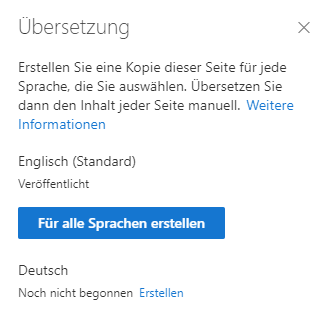 Dialog Behind the “Translation” Button
The Technology Behind Multilingualism
For each page or news item, different language copies with the translated content are created. These language copies are located in subfolders of the SitePages library, with a separate folder for each language. Example URL for the German homepage: /SitePages/de/Home.aspx
The desired or set language in the SPO user profile is compared with the available languages of the website. The language with the highest priority in the user profile is delivered if it is supported on the website.
Hidden SPO Profile Settings
https://tenantname-my.sharepoint.com//_layouts/15/editprofile.aspx?UserSettingsProvider=dfb95e82-8132-404b-b693-25418fdac9b6
Currently, there are still different display modes in browsers, as can be seen in the following screenshot showing the same page in Edge and in Chrome for the same user.
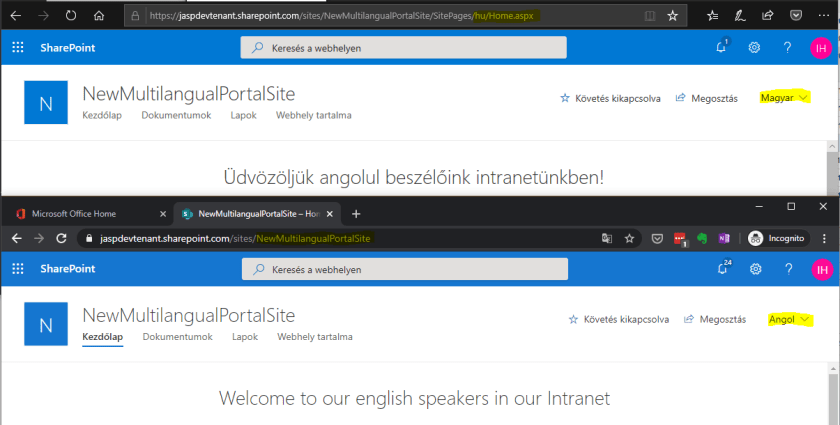 Inconsistent Browser Behavior
Further Information: