Mail Merge in SharePoint Online – Step-by-Step Guide (2026)
Create mail merges in SharePoint Online with Word and Excel. Step-by-step: sync SharePoint list via OneDrive and use it as data source for Word mail merge.

Creating mail merges in SharePoint Online presents challenges for many users. It becomes particularly tricky when both the Word document and the table are located within SharePoint. In this article, you’ll learn how mail merges can be created and printed despite these hurdles.
Current State of Technology
Linking with a list, such as an Excel table, under an http address is not supported by Microsoft. This has been clarified in various articles:
- MS Community Thread: Word Mail Merge with Excel document in a Sharepoint document library
- Microsoft Support Article: Data sources you can use for a mail merge
Instead, a local table is required:
- Microsoft Support Article: Mail merge using an Excel spreadsheet
This solution makes sense not only for us, but also for many other users, as shown by this long-standing request:
- Microsoft Feedback Portal: Allow mailmerge using SharePoint lists and documents
Practical Solution
For the implementation, we use OneDrive to map a SharePoint list as a “local” drive. SharePoint Online’s sync functionality makes this possible:

This way, the data source is practically “local”:

Example of the Excel table structure:

Now we can start with the actual mail merge in a Word document. The document must be opened in the Word app, as the mail merge functionality is not available in the browser:

Alternatively, the document can be opened directly from Finder (Mac) or Windows Explorer (Windows).
In the Word document, we connect the data source, an Excel table…
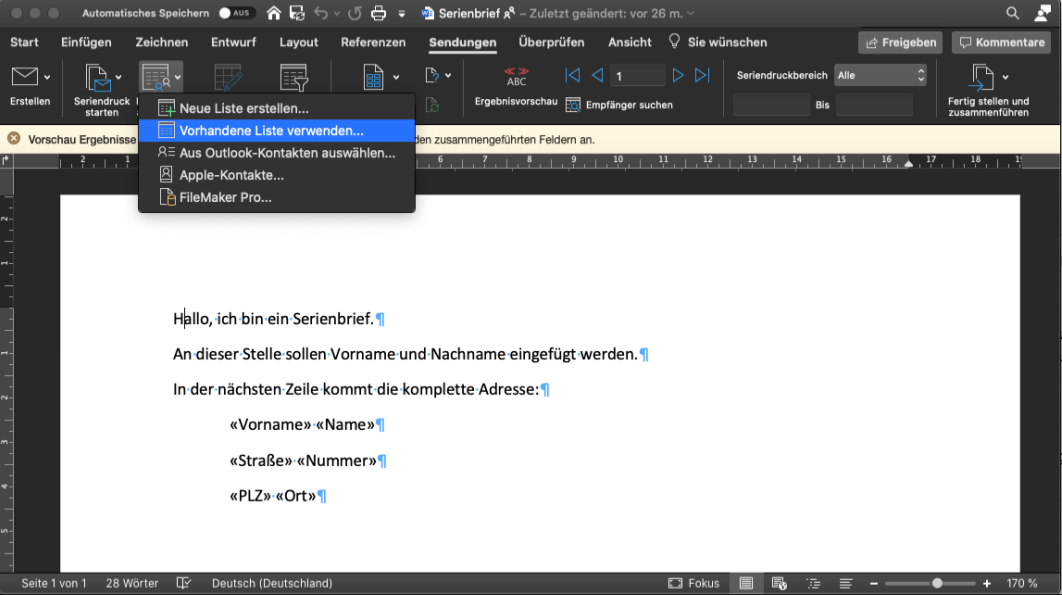
…select the file from OneDrive…

…and assign the fields…
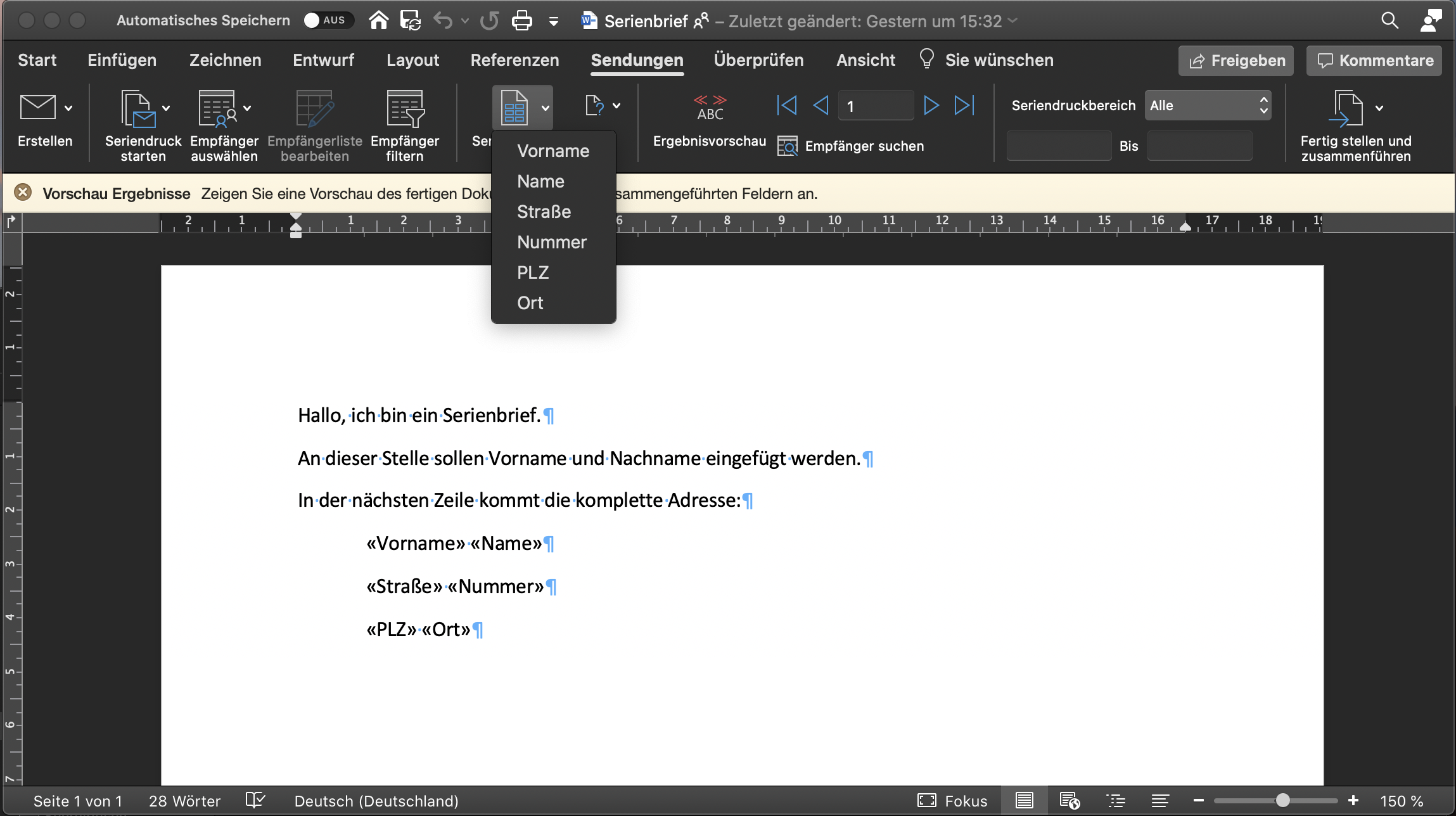
…to finally print everything:
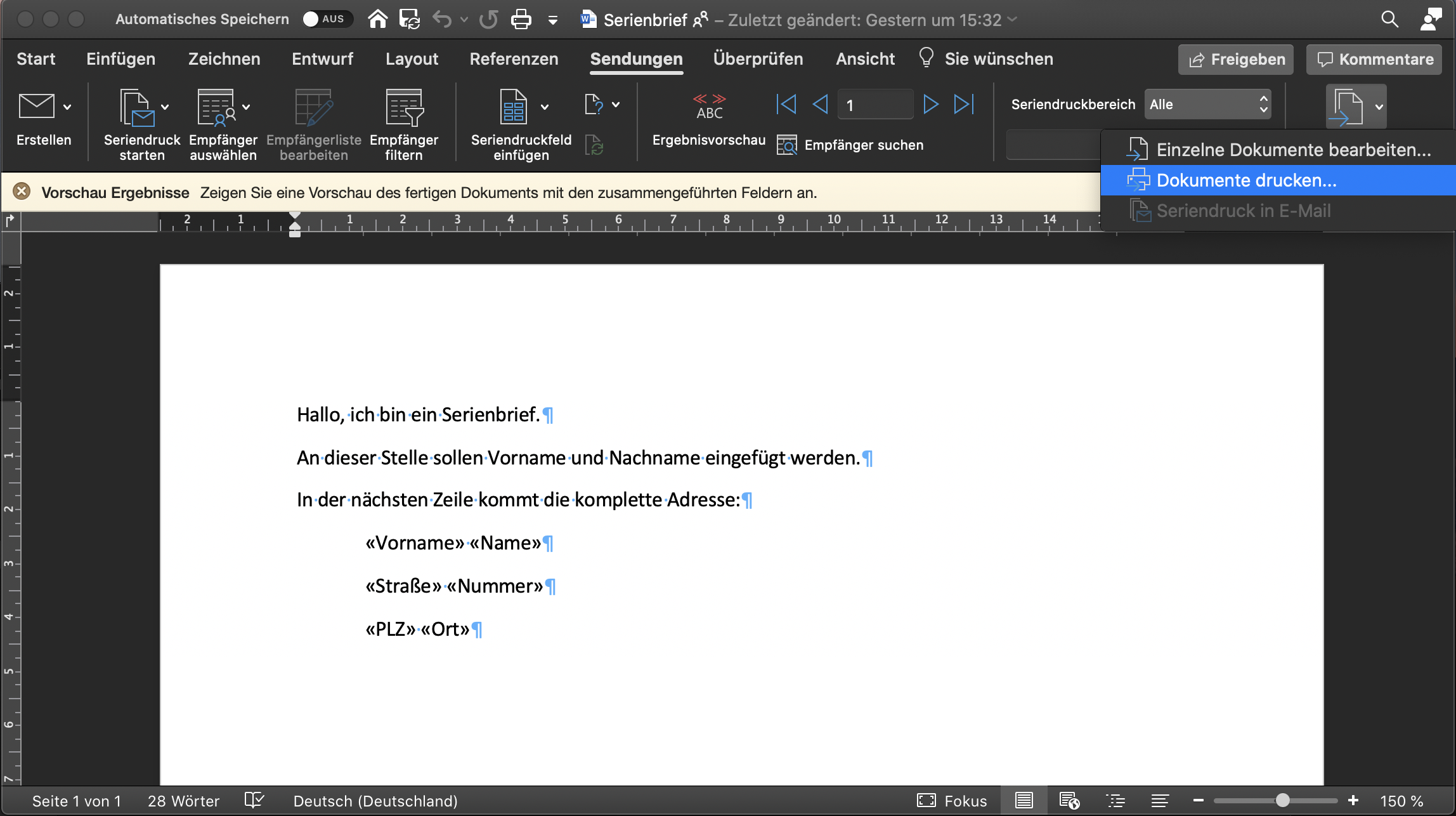
Since the data source only contains two addresses, only two pages are printed:

Conclusion
SharePoint is an extremely powerful tool. The use of the online variant is steadily increasing worldwide, supported by Microsoft’s cloud-first strategy. While Microsoft still doesn’t natively support mail merge directly in the browser, the OneDrive sync workaround works reliably — including with current Microsoft 365 versions (as of 2026).
Tip: If you regularly need to create mail merges from SharePoint lists, take a look at Power Automate. It allows you to fully automate mail merges — without any manual Word mail merge process.