PnP PowerShell: Dependency on Profile Language
PnP PowerShell is language-dependent - fix errors through your Microsoft 365 profile language. Learn how to avoid language conflicts in SharePoint updates.
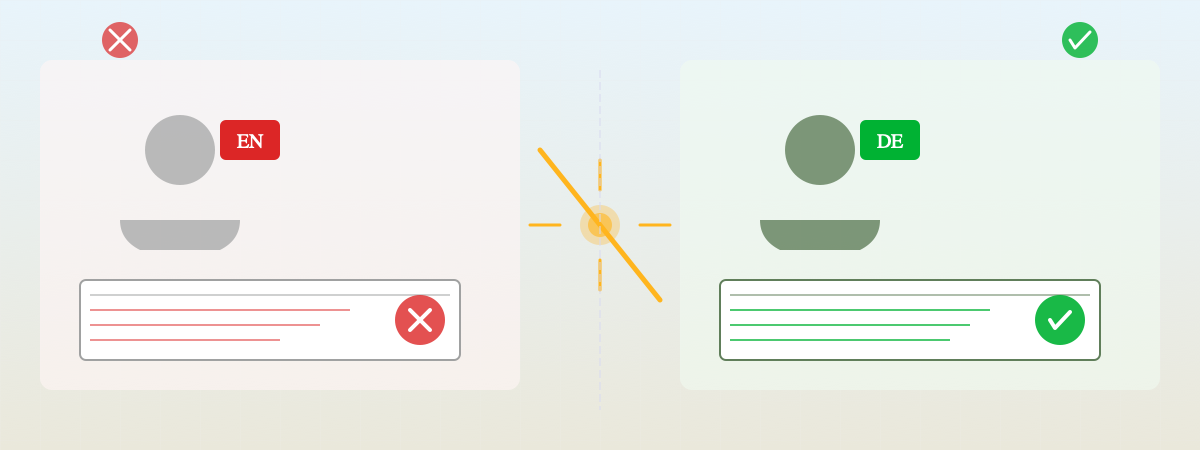
When working with PnP PowerShell, unexpected problems can occur due to language settings. In this post, you’ll learn why the profile language is crucial and how to effectively avoid language-dependent difficulties.
The Problem
During various customer projects, a hard-to-explain problem occurred: “Sometimes” PnP commands didn’t show the expected behavior. For example, a developer could successfully update the description of a SharePoint page, but the changes weren’t visible to other users! Additionally, when exporting a page template with Get-PnPSiteTemplate, the names of document libraries, fields, and views were saved in English, even though the website was set to German.
The Cause
Both problems share the same cause: PnP commands are dependent on the language of the user executing the PnP script. The language is determined not by the website settings, but by the Microsoft 365 user profile language of the executing user.
Which Language is Meant? SharePoint, Browser, or User Profile?
The decisive language is not the SharePoint website language and not your browser language. What matters is the language of your Microsoft 365 user profile. This setting determines how PnP PowerShell names fields, libraries, and views.
The Solution: Avoiding Problems
With this knowledge, you can avoid language-dependent problems systematically.
Step 1: Check Your Profile Language
Before making updates to language-dependent fields or exporting a website template, verify your Microsoft 365 user profile language. The language setting in your profile determines how PnP PowerShell names all fields, libraries, and views.
Step 2: Adjust Profile Language Before Exports
For example, if you want to export a page template for a German website, ensure your user profile is set to German before running Get-PnPSiteTemplate. This ensures all document libraries, fields, and views are exported in German and can be correctly imported into the target website.
Step 3: Perform Updates with Consistent Language
With multilingual fields like page descriptions, be careful. If you update a page description with PnP PowerShell while your profile is set to English, only the English version of the field changes - not the German version. Users with German profiles won’t see your update.
Best Practice: Use the same user profile (with the correct language setting) for all related operations. This is especially critical when multiple developers work on the same SharePoint environment.
Summary
When using PnP PowerShell commands, it’s essential to consider the language of the Microsoft 365 user profile of the executing user. Language conflicts don’t arise from website settings or browser language - they stem from misalignment between profile language and target language.
Key Takeaway: Profile language = Template language = Consistency
Need Help?
Language-dependent errors with PnP PowerShell and complex SharePoint automation are part of our daily work. Our team is happy to advise you on SharePoint migrations and automation projects.
Schedule a free consultation - we’ll help you avoid language-dependent errors and secure your PnP PowerShell processes.