How Do You Find Widget Errors That Hit Only a Few Users?
Widget errors often surface only through complaints. How widgets report console trails and network context to error monitoring.
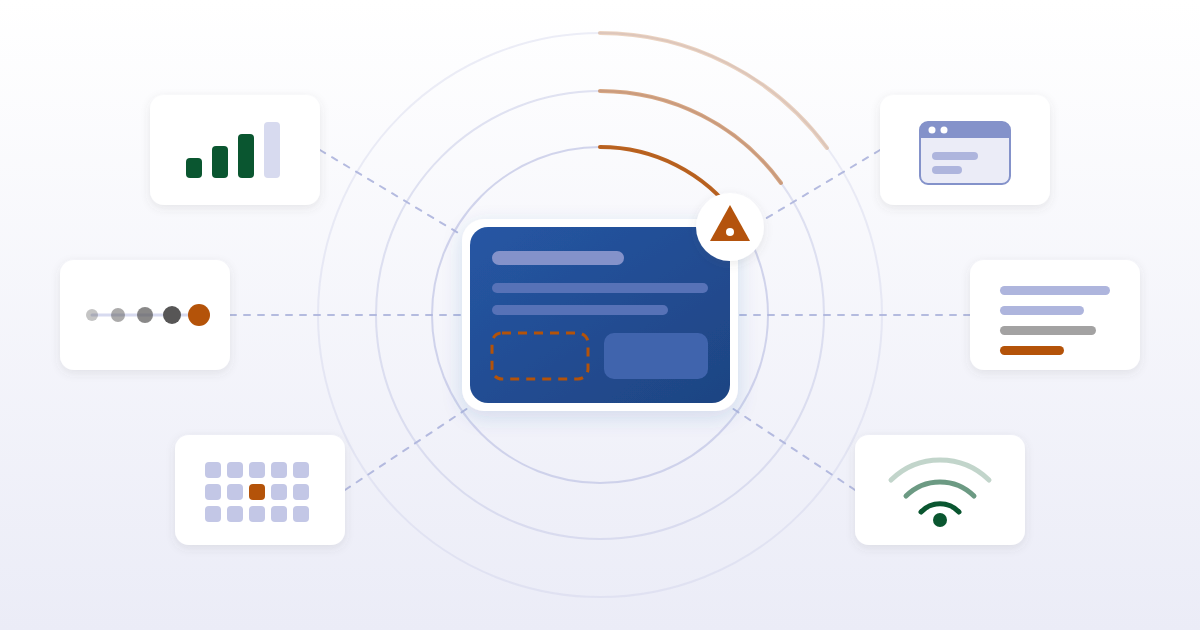
A widget in your intranet can work for almost everyone and still stay blank for a small share of users. Let us say 3 out of 100 people, a freely chosen example figure. Without a report from the browser, nobody notices until the first email arrives.
Why do widget errors only surface through complaints?
An intranet widget does not run on your server. It runs in the browser of your users and in the Staffbase app on iOS and Android. The server delivers a file and reports success. Whatever happens next happens outside your logs: a blocked request, a connection dropped on a train, a browser version that does not know a function.
For IT, that failure stays invisible until someone writes in. And when someone writes in, the message rarely says more than “the widget does not load”. No browser, no timestamp, no network, no error message. The analysis starts with follow-up questions, and every follow-up question costs a day.
What has the widget reported since release 3.13.0 of 18 June 2026?
Since release widget-builder-v3.13.0 of 18 June 2026, both the widget and the admin interface send two extra pieces of information to GlitchTip. GlitchTip is an open-source error monitor: it receives error reports from browsers, groups similar cases, and makes them searchable.
First, the console trail. The widget carries along everything that lands in the browser console, from a plain notice to an error message, as a breadcrumb: a trail of the last steps before the crash. Those outputs deliberately never become reports of their own. They travel attached to the error report and create no flood.
Second, the network context. Every report carries what the browser reveals about the connection: online or offline, the coarse connection class from slow-2g to 4g, the connection type such as Wi-Fi, cellular or Ethernet, estimated bandwidth and response time, plus the data-saver setting. Three of them are directly filterable in GlitchTip: online, connection class and data saver. When the browser has no network API, which is the normal case on iOS, the report stays valid and those fields read “unknown”.
How does the report get out of the intranet at all?
The widget runs on the company’s Staffbase domain. There, strict page security rules and content blockers stop a page from talking directly to an outside service. The report therefore travels through the Widget Builder API, the one address the widget is allowed to talk to anyway. That step passes the report on to GlitchTip unchanged and adds nothing.
What deliberately stays out?
Before sending, a shared function cleans up every report. It strips tokens, authorisation fields and the query part of URLs, including inside the console trail. The network context supplies coarse values only: no IP address, no URL, no mobile carrier, no Wi-Fi identifier, no request payloads.
What does IT now see before the first email?
Instead of “does not load”, the report states which browser on which device was affected, whether the connection was up, what the console printed shortly before the break, and which tenant the widget was embedded in. Invisible single cases turn into a list with recognisable patterns.
There is also a small lever for support: when a widget breaks, its error notice shows the GlitchTip event ID. Anyone who reports the problem can quote that ID, and you jump straight to the matching report without searching.
How do you work through such a picture?
- Filter for patterns. Does it hit only one browser version, only mobile connections, or only data-saver mode? The three network filters answer that in one click.
- Read the trail. The console output before the error usually shows which call never returned or which value was missing.
- Reproduce on purpose. A case on a slow connection can be rebuilt in the browser developer tools instead of being guessed at.
- Report only then. A message with cause, scope and a fix is a different message from a follow-up question.
This order changes the role of IT: you answer the complaint instead of starting with it.
What does this mean for your widgets?
Check two things for every widget running in your intranet. Does a browser error reach you at all? And does the report contain enough to decide, without asking back, whether the widget, the network or the device caused it? If either answer is “no”, you are still using complaints as your early-warning system.
The Widget Builder ships these reports for your Staffbase widgets. Want to know what your own widgets report when they fail? Talk to us and we will look at it together.
Over 20 years of experience with development, SharePoint, and Microsoft 365. Sascha advises companies on implementing and optimizing digital workplaces – from strategy to technical implementation.
Learn more about the author →