How Do You Build Widgets by Chat Instead of by IT Ticket?
The AI Editor in Widget Builder creates Staffbase widgets through chat: describe it, check the live preview, refine it in the classic editor.
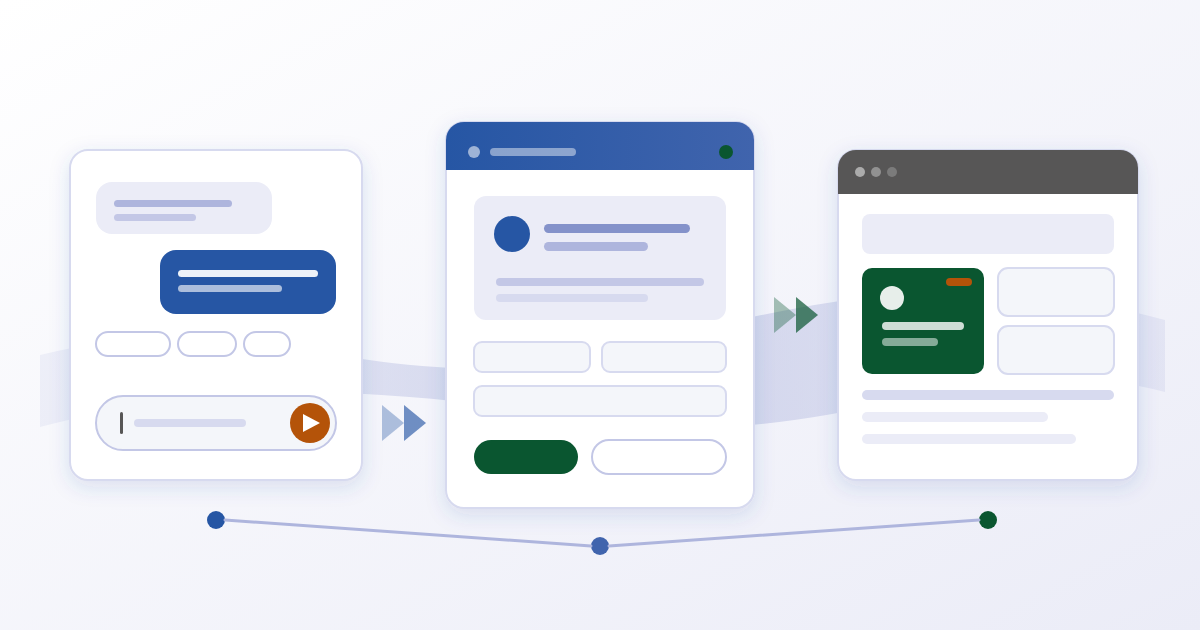
A widget idea takes two sentences to describe and still sits in the IT queue for weeks. Since Widget Builder release 3.7.0 of 27 April 2026, the department describes the widget in a chat and sees the result right next to it.
Why does every widget mean waiting for IT?
A widget is a small building block on an intranet page, for example a survey, a countdown, or a list pulled from another system. In a meeting, the idea takes two minutes to explain. Then the work starts that nobody in the department can do: write the layout in Handlebars, a templating language for HTML, add setting fields, maintain translations, connect an interface.
So the idea becomes a ticket and queues up behind migrations and incidents. By the time work begins, the occasion has often passed. The campaign day was last month, the survey should have run during the quarter.
What does the AI Editor in Widget Builder do?
The AI Editor splits the screen in two: the conversation on one side, a live preview of the widget on the other. You write what you need in plain language, for example “Create a welcome banner with a title, a short message, and a button.” The preview updates as soon as the assistant creates or changes the widget.
There are two ways in. On the dashboard you start a new widget straight from the prompt box. From the widget editor you open the assistant for the widget you are working on right now. Suggested quick actions help you get going when the right wording escapes you.
What can you ask it to do?
The assistant handles the whole widget, not just its looks:
- Create a new widget from a description
- Update an existing widget, meaning layout, text, colours, or behaviour
- Add setting fields so editors can later configure the widget in Staffbase themselves
- Add translations for the languages you support
- Connect API data so the widget shows live content
- Test-render the Handlebars layout to check it works
The same applies to data tables, the structured data sets inside Widget Builder. The assistant creates a table, defines columns and their types, inserts sample rows, and connects the table to a widget. That gives you a prototype with test data before anyone discusses the real data import.
How do you keep control of the result?
The chat does not replace the classic editor, it sits alongside it. You can switch over at any time and get full access to HTML, setting fields, translations, API request, and variables. You can move between chat and classic editor as often as you like. That is the practical part: the department takes the widget as far as a working preview, and IT only handles the fine-tuning that genuinely needs code.
Conversations are saved and linked to their widget. You can continue an earlier iteration instead of describing from scratch what the widget is supposed to do.
One rule stays: check the layout, settings, and data before you activate a widget for your workforce. The assistant is a help, not an approval.
What does IT have to enable?
The AI Editor only appears when AI features are enabled for your tenant. A tenant is your separated area inside Widget Builder. If the editor is missing from the interface, JASP switches it on for your tenant.
After that, the assistant works inside your current session and only within your tenant, limited by the permissions of your account and your licence. It can neither see nor change content from other tenants. Technically it calls the same tools Widget Builder already provides, for creating, updating, and test-rendering a widget. So there is no second, less scrutinised route into your data.
The language model behind it is interchangeable. Widget Builder supports Anthropic and OpenAI as well as Azure OpenAI and LiteLLM, configured through the server environment. The access key stays on the server.
How should you start?
Take a widget you already know and describe it again in the chat. You will see immediately how precise your description was and learn from your own example which wording works. Then check the preview, run a test render, and move to the classic editor for the rest.
Product details are on our Widget Builder page, and the full guide is in the AI Editor documentation (opens in a new tab).
Want to know whether the AI Editor is enabled for your tenants, or need help with the first widget? Contact us.
What Is the Next Step in Your Company?
Our page AI Consulting and AI Adoption explains which JASP products use AI and how an AI rollout in a company works. Get in touch if you want to plan the next step concretely.
Over 20 years of experience with development, SharePoint, and Microsoft 365. Sascha advises companies on implementing and optimizing digital workplaces – from strategy to technical implementation.
Learn more about the author →Contents
Related Content
Widget of the Week: KPI-Dashboard for Executives in the Staffbase Intranet
02.02.2026Widget of the Week: FAQ Widget for IT Support
26.01.2026Widget of the Week: Event Countdown for HR
19.01.2026Internal Communication Reimagined: Relevant, Flexible, and Efficient – with Staffbase & JASP Widget Builder
17.12.2025